|
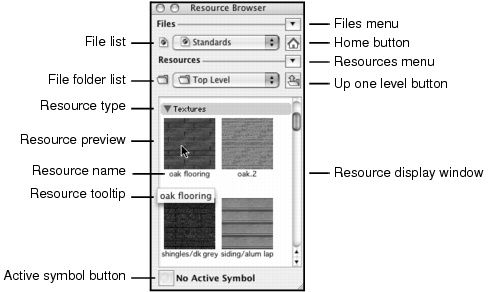
Lists all open and favorite files, and temporarily shows the name of a browsed file; displays “Active Document” when Always Display Active Document has been selected from the File list
|
|
|
Lists the file’s symbol folders; select a symbol folder to display the folder’s resources in the resource display window
|
|
|
In Thumbnails mode, displays resources divided into categories by type; the types are displayed in headings that can be shown and expanded, or collapsed and hidden (see Hiding and Showing Resources). In List mode, click the column header to sort the columns by resource name or by resource type.
|
|
|
Shows the resource name; a name in italics indicates a referenced resource. Type the first letter of a resource to quickly display resource names beginning with that letter. The color (black, red, or blue) indicates the type of resource (see Symbol Types).
|
|
|
Shows the full resource name as a tooltip when the mouse pointer hovers over a resource; for referenced resources, the tooltip also shows the source file name
|
|
|
Displays the resources from the file shown in the File list, and the symbol folder shown in the File Folder list. Each resource type must be selected for display in the Resource Browser (see Hiding and Showing Resources).
|