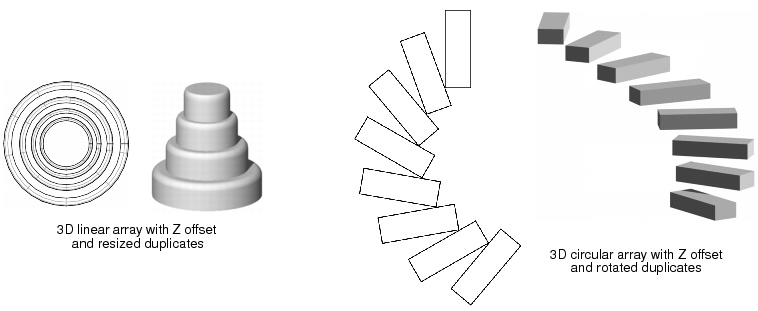
The Duplicate Array command controls how many copies of selected objects are made and how these copies are arrayed, or placed, in the drawing. The drawing must be in Top/Plan view if 2D objects are being duplicated.
For information about placing symbols in walls in a duplicate array, see Inserting Symbols in a Duplicate Array.
|
2.
|
Select Edit > Duplicate Array.
|
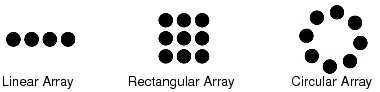
The Duplicate Array dialog box opens. Select the desired duplication array Shape. The dialog box dynamically displays the appropriate fields based on the selected linear, rectangular, or circular array shape.
|
First Duplicate’s Position Determined By
|
Specify the start point for the first copied object, by either specifying coordinates or placing the object with the mouse
|
|
To use Cartesian coordinates, click this option and specify the distance of the center of the copy from the center of the original object by entering X, Y, and Z coordinates. If the view is something other than Top/Plan, and the field Values Are With Respect to the is set to Working Plane, the labels on the coordinate fields are I, J, and K instead of X, Y, and Z. Z (or K) must be zero when only 2D objects are being duplicated.
|
|
|
This option is always enabled if 2D objects are selected; if 3D or hybrid objects are selected, or if both 2D and 3D objects are selected, this option is enabled only in Top/Plan view. To use polar coordinates, click this option and specify the distance of the center of the copy from the center of the original object by entering r (radius), theta (angle), and Z coordinates; Z must be zero when only 2D objects are being duplicated.
|
|
|
Next Mouse Click and Z (or K)
|
This option is always enabled if 2D objects are selected; if 3D or hybrid objects are selected, or if both 2D and 3D objects are selected, this option is enabled only in Top/Plan view. To place the copy with the mouse, select Next Mouse Click. To offset the first copy from the original object’s plane, enter a Z (or K) value; Z (or K) must be zero when only 2D objects are being duplicated.
|
|
This option is enabled for 3D objects if the view is something other than Top/Plan; specify whether the array should be built relative to the Ground Plane or Working Plane
|
|
|
Select Resize Duplicates to resize each successive copy with the specified X Scale, Y Scale, and Z Scale values; to leave the copies at the same scale as the original object, ensure that Resize Duplicates is deselected
|
|
|
Select Rotate Duplicates to rotate each successive copy at the specified Angle; to leave the copies at the same rotation as the original object, ensure that Rotate Duplicates is deselected
|
|
|
To include the original object in the array, select Retain; otherwise, the original object is deleted. To leave the original object selected after duplication, also click Leave Selected.
|
|
Specify the number of copies of the original object to create in the array’s X direction (Ground Plane duplication) or I direction (Working Plane duplication)
|
|
|
Specify the number of copies of the original object to create in the array’s Y direction (Ground Plane duplication) or J direction (Working Plane duplication)
|
|
|
For 3D objects, specify the number of copies of the original object to create in the array’s Z direction (Ground Plane duplication) or K direction (Working Plane duplication)
|
|
|
For 3D objects, specify the distance between each stack in the array (measured from the copied objects’ centers); this value must be zero when only 2D objects are being duplicated
|
|
|
This option is enabled for 3D objects if the view is something other than Top/Plan; specify whether the array should be built relative to the Ground Plane or Working Plane
|
|
|
Select Resize Duplicates to resize each successive copy with the specified X Scale, Y Scale, and Z Scale values; to leave the copies at the same scale as the original object ensure that Resize Duplicates is deselected
|
|
|
Select Rotate Duplicates to rotate each successive copy at the specified Angle; to leave the copies at the same rotation as the original object, ensure that Rotate Duplicates is deselected
|
|
|
To include the original object in the array, select Retain; otherwise, the original object is deleted. To leave the original object selected after duplication, also click Leave Selected.
|
|
Z (or K) Offset of Successive Duplicates
|
To offset copies from the original object’s plane, specify the distance between each successive copy. If the view is something other than Top/Plan, and Values Are With Respect to the is set to Working Plane, the label is K instead of Z. Z and K must be zero when only 2D objects are being duplicated.
|
|
Specify the center point for the circular array, by either specifying coordinates or placing the array with the mouse
|
|
|
To place the array using coordinates, enter the X and Y coordinates of its center point. If the view is something other than Top/Plan, and Values Are With Respect to the is set to Working Plane, the labels on the coordinate fields are I and J instead of X and Y.
|
|
|
This option is always enabled if 2D objects are selected; if 3D or hybrid objects are selected, or if both 2D and 3D objects are selected, this option is enabled only in Top/Plan view. Select Next Mouse Click to place the array so that its center is at the next clicked point.
|
|
|
This option is enabled for 3D objects if the view is something other than Top/Plan; specify whether the array should be built relative to the Ground Plane or Working Plane
|
|
|
Select Resize Duplicates to resize each successive copy with the specified X Scale, Y Scale, and Z Scale values; to leave the copies at the same scale as the original object, ensure that Resize Duplicates is deselected
|
|
|
Select Rotate Duplicates to rotate each successive copy at either the Angle Between Duplicates or the specified Custom Angle; to leave the copies at the same rotation as the original object, ensure that Rotate Duplicates is deselected
|
|
|
To include the original object in the array, select Retain; otherwise, the original object is deleted. To leave the original object selected after duplication, also click Leave Selected.
|
|
3.
|
Click OK.
|
If Next Mouse Click was selected, move the mouse where the copies are to be placed, and click. For circular and rectangular arrays, click the mouse at the center of the array.